You spot a Reel that is genuinely worth keeping, a recipe you will actually cook or a workout you swear you will try, and then it vanishes into the endless scroll the moment you put your phone down. Saving it inside the app helps, until the creator deletes the post and your saved copy disappears with it.
To download Instagram Reels, copy the Reel’s link from the three-dot menu, paste it into a free online downloader like PasteYourLink, then tap Download to save the video as an MP4 file on your iPhone, Android phone or PC. No app install or login is needed, and the Reel saves without a watermark.
That single method covers most people, but the exact taps differ slightly depending on your device, and there are a few extra tricks worth knowing for watermark-free saves, your own Reels and the moments when downloading refuses to work. Below are four simple ways to download Instagram Reels in 2026, walked through for iPhone, Android and desktop.
The 4 simple ways to download Instagram Reels
There are four reliable ways to download Instagram Reels, and they all start from the same place: copying the Reel’s link. The method you choose comes down to the device in your hand right now.
- Use a free online Reels downloader such as PasteYourLink, which works on any device through your browser.
- Download on iPhone using Safari and save straight to your Photos library.
- Download on Android using Chrome and save to your Downloads folder or Gallery.
- Download on a PC or Mac using any desktop browser for the highest quality file.
Every method is free, none of them ask you to log in to Instagram, and each one saves the Reel as a standard MP4 you can replay, edit or share offline.
Method 1: Download Instagram Reels online with a free downloader
The quickest way to download any Reel is a web-based downloader, because it works the same on every device and needs nothing installed. Here is the full process, which takes about ten seconds once you have done it once.
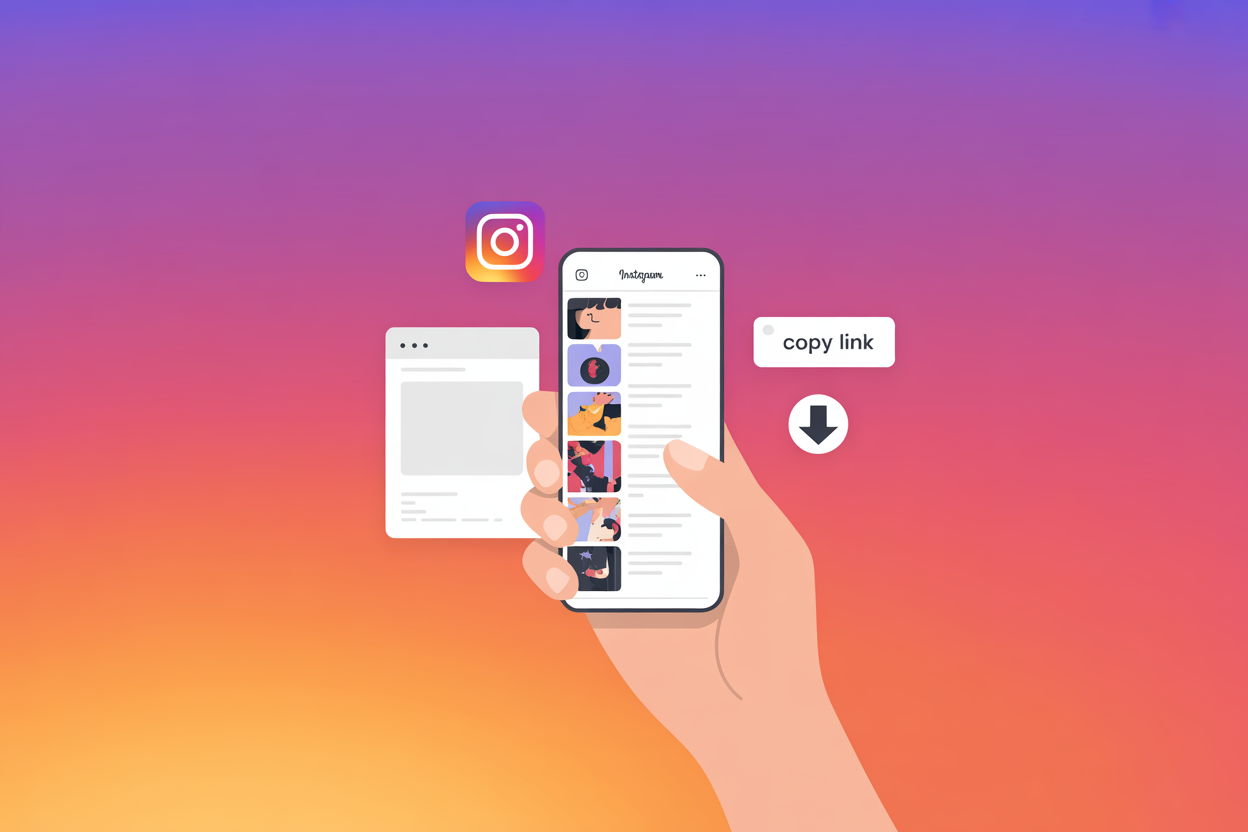
- Open Instagram, find the Reel you want, and tap the three-dot menu (…) in the top or bottom corner of the post.
- Tap Copy link, which saves the Reel’s URL to your clipboar d.
- Go to the PasteYourLink Instagram downloader in your browser and paste the link into the input box.
- Press Download, wait a second for the file to appear, then save the MP4 to your device.
Because the tool pulls the video directly from Instagram’s servers, you get the original quality the creator uploaded, with no compression and no logo stamped across it. This is the method we will reuse for each device below, with only the saving step changing.
Method 2: How to download Instagram Reels on iPhone
On an iPhone you download Reels through Safari and they save straight into your Photos app, with no extra software required on iOS 13 or newer. Apple’s stricter approach to downloads is the only reason this needs its own steps.
- In the Instagram app, open the Reel, tap the three dots (…) and choose Copy link.
- Open Safari and go to the PasteYourLink downloader, then paste the link and tap Download.
- When the file loads, tap the download icon, then open the Files app or your Downloads and tap Save Video to send it to your Photos library.
If you would rather skip the browser entirely, the iOS Shortcuts app can be set up to grab a Reel from your clipboard, although for a one-off save the Safari route is faster than building a shortcut from scratch.
Method 3: How to download Instagram Reels on Android
On Android the process is even more direct, because the file lands in your Downloads folder automatically and shows up in your Gallery without any extra taps. Chrome handles everything you need.
- Open the Reel in Instagram, tap the three dots (…) and select Copy link.
- Open Chrome, head to the PasteYourLink downloader, and paste the link into the box.
- Tap Download, then tap the video to save it. It will appear in your Downloads folder and your Gallery automatically.
Android also has plenty of dedicated Reels downloader apps on the Play Store, but a browser-based tool keeps your phone free of extra apps that beg for permissions and bombard you with ads, so we would stick with the web route unless you download Reels daily.
Method 4: How to download Instagram Reels on a PC or Mac
On a computer you download Reels through any desktop browser, which is the best route when you want the largest, highest-quality file for editing or reposting. The steps mirror the mobile process with a mouse instead of taps.
- Open Instagram.com in Chrome, Edge, Firefox or Safari and find the Reel.
- Click the three-dot menu on the post and choose Copy link, or simply copy the Reel’s web address from the browser’s address bar.
- Paste the link into the PasteYourLink downloader and click Download.
- The MP4 saves to your computer’s Downloads folder, ready to play in any video app.
Downloading on desktop is handy for creators who want to pull a batch of Reels for a content review, or anyone building a swipe file of ideas to study later on a bigger screen.
How to download Instagram Reels without a watermark
To download Instagram Reels without a watermark, use an online downloader that pulls the file directly from Instagram rather than screen-recording it. Reels do not carry an Instagram watermark the way TikTok videos do, so a clean tool simply saves the original MP4 exactly as the creator uploaded it, with no logo, username or banner added.
Two things ruin a clean download, so it is worth avoiding both. Screen recording adds your phone’s status bar and any on-screen interface, and some lower-quality tools re-encode the video and stamp their own brand across the corner. Sticking to a reputable downloader keeps the footage pristine, which matters if you plan to study the editing or feature it in your own content with proper credit.
How to save your own Instagram Reels inside the app
If the Reel is your own, you can save it without any third-party tool, straight from Instagram. This is the cleanest option when you simply want a backup of content you created yourself.
- Before posting: while you are creating a Reel, tap the three dots on the editing screen and choose Save or Save to camera roll to keep a copy in your gallery.
- After posting: open your published Reel, tap the three-dot menu, and look for Save to camera roll or Download. Note that Instagram only shows this for your own posts, and the option can be switched off in your account settings.
- From drafts: Reels you saved as drafts can be reopened and exported to your camera roll before you publish them.
For anyone else’s Reels, Instagram deliberately removes the download button, which is exactly why the browser-based methods above exist.
Why can’t I download Instagram Reels? Common fixes
If a Reel will not download, the cause is almost always the link, the account’s privacy, or the tool you are using rather than a fault on your device. Run through these checks and it usually sorts itself out.
- You copied the wrong link. Make sure you tapped Copy link on the Reel itself, not a profile or story link, since only a direct Reel URL will work.
- The account is private. Reels from private accounts cannot be downloaded by any reputable tool, and that is by design to protect the creator.
- The download option is missing in-app. Instagram removes the native save button for other people’s posts, so use a browser-based downloader instead.
- The Reel was deleted or is region-locked. If the original post is gone or blocked in your country, there is no file left to fetch.
It is also worth remembering the etiquette. Downloading Reels for personal viewing, inspiration or a private archive is generally fine, but reposting someone else’s video as your own, without credit or permission, crosses into copyright territory you want to stay clear of.
Ready to save that Reel right now? Paste the link into the PasteYourLink Instagram Reels downloader and your MP4 will be ready in seconds, on whatever device you are holding. The same tool handles Stories, photos and videos too, so it is worth bookmarking our full guide to how to download Instagram videos, and if you live on more than one platform our walkthrough on how to download TikTok videos follows the same simple paste-and-go process.
Key Takeaways
- Every method starts the same way: open the Reel, tap the three dots, and choose Copy link.
- A free online downloader like PasteYourLink works on iPhone, Android and PC with no app or login required.
- On iPhone the Reel saves through Safari into Photos, on Android it lands in your Downloads and Gallery, and on desktop it goes to your Downloads folder.
- Reels download as clean MP4 files without a watermark when you use a tool that fetches the original video.
- You can save your own Reels directly in the app, but private accounts and deleted posts cannot be downloaded.
Frequently Asked Questions
Open the Reel, tap the three-dot menu and select Copy link. Paste that link into a free online downloader such as PasteYourLink, then tap Download to save the MP4 to your phone. It works on both iPhone and Android with no app required.
Yes. Reels do not carry an Instagram watermark the way TikTok videos do, so a downloader that pulls the original file saves it cleanly, with no logo or username added. Avoid screen recording, which captures your phone’s interface and lowers the quality.
Instagram removes the native download button for other people’s posts, so you will only see it on your own Reels. For everyone else’s, use a browser-based downloader. If that still fails, the account is probably private or the Reel has been deleted.
Downloading Reels for personal viewing, inspiration or a private archive is generally acceptable. Problems arise when you repost someone else’s video as your own without credit or permission, which can breach copyright. Always respect the creator and Instagram’s terms of service.
Reels download as standard MP4 files, which play on virtually any device. A good downloader fetches the highest resolution Instagram offers for that video, typically 720p or 1080p, matching the original quality the creator uploaded.
No. Reels from private accounts cannot be downloaded by any reputable tool, since the content is restricted to approved followers. This limit protects creators, so the only way to save a private Reel is with the account owner’s direct permission.
Conclusion
Downloading Instagram Reels really does come down to one habit: copy the link, paste it into a downloader, and save the file, whether you are on an iPhone, an Android phone or a computer. Keep a clean, browser-based tool bookmarked and you will never lose another Reel to the scroll or to a creator hitting delete. Next time something is worth keeping, paste the link into PasteYourLink and it is yours in seconds.