You spot a caption that perfectly nails the tone you have been chasing, you go to copy it, and Instagram simply refuses to play along. The app gives you no select, no copy, nothing but a wall of text you cannot grab. It is one of the platform’s quietest frustrations, and almost everyone hits it eventually.
To save Instagram captions as text, open the post in a desktop or mobile web browser, drag your cursor across the caption to highlight it, and choose Copy, then paste it into Notes or a document. On a phone, the fastest route is an online caption tool: paste the post link and copy the extracted text in one tap.
That is the short version, and it genuinely takes seconds once you know the trick. Below we walk through every reliable method, on computer, iPhone, and Android, including the screenshot and text-recognition route, the one-click online tool, and a few tips on saving and organising captions so you can actually find them again later.
Why Instagram won’t let you copy captions in the app
Instagram has no native copy button for captions, which is why tapping and holding on the text inside the app does precisely nothing. The caption is rendered in a way that blocks normal text selection, so the usual press-and-hold gesture that works in Notes or a browser falls flat here. There is no hidden setting to switch on either, so it is not something you are doing wrong.
The good news is that the caption text is still public and perfectly accessible, it is just locked behind the app’s interface. Every method below is a way around that limitation, and each one gives you the full caption with its hashtags, mentions, line breaks, and emojis preserved exactly as the creator wrote them.
How to copy an Instagram caption on a computer
On a desktop or laptop, copying a caption works exactly as you would expect, because the browser version of Instagram lets you select text normally. This is the most reliable method of the lot, so if you have a computer to hand it is the one to reach for.
- Open Instagram.com in any browser, such as Chrome, Safari, Edge, or Firefox, and log in if prompted.
- Navigate to the post or reel whose caption you want, either from your feed or by searching for the account.
- Click and drag your cursor across the caption text to highlight it from start to finish.
- Right-click the highlighted text and choose Copy, or press Ctrl+C on Windows or Cmd+C on a Mac.
- Paste it wherever you need it, into a document, an email, or your own draft caption, with Ctrl+V or Cmd+V.
If the caption is long and cut off behind a “more” link, click “more” first so the full text expands, otherwise you will only copy the visible portion. This same approach works for comments too, which is handy when you want to grab a translation or a quote from the thread.
How to copy Instagram captions on your phone (iPhone and Android)
On a phone you copy a caption by opening the post in a mobile browser rather than the app, because the browser allows text selection that the app blocks. The trick most people miss is requesting the desktop version of the site, which makes the caption far easier to highlight on a small screen.
- In the Instagram app, tap the share icon (the paper plane) under the post, then tap Copy link, or use the three-dot menu and choose Copy link.
- Open Safari, Chrome, or your preferred mobile browser and paste the link into the address bar, then load the page.
- Request the desktop site. In Safari, tap the “aA” icon and choose Request Desktop Website. In Chrome, tap the three-dot menu and tick Desktop site.
- Press and drag over the caption to select it, using the blue handles to fine-tune where the selection starts and ends.
- Tap Copy, then paste the caption into Notes, a message, or wherever you are keeping it.
This works identically on iPhone and Android, since the browser is doing the heavy lifting rather than the operating system. If selecting still feels fiddly, the screenshot method below or a dedicated online tool will usually be quicker.
Copy a caption from a screenshot with text recognition
You can also lift a caption straight out of a screenshot using the built-in text recognition on your phone, which is brilliant when a link will not cooperate or the account is one you already follow. Both Apple and Google bake this in, so you do not need to install anything extra.
On iPhone with Live Text
Take a screenshot of the caption, open it in the Photos app, then press and hold on the text until your iPhone highlights it. Drag the handles to cover the whole caption, tap Copy, and paste it wherever you like. Apple’s Live Text feature recognises the words automatically on most recent iPhones.
On Android with Google Lens
Screenshot the caption, open it in Google Photos, and tap the Lens icon at the bottom of the screen. Tap the text, drag to select the part you want or choose Select all, then tap Copy text to send it to your clipboard. Google Lens handles emojis and most languages without any fuss.
Copy and save captions instantly with an online tool
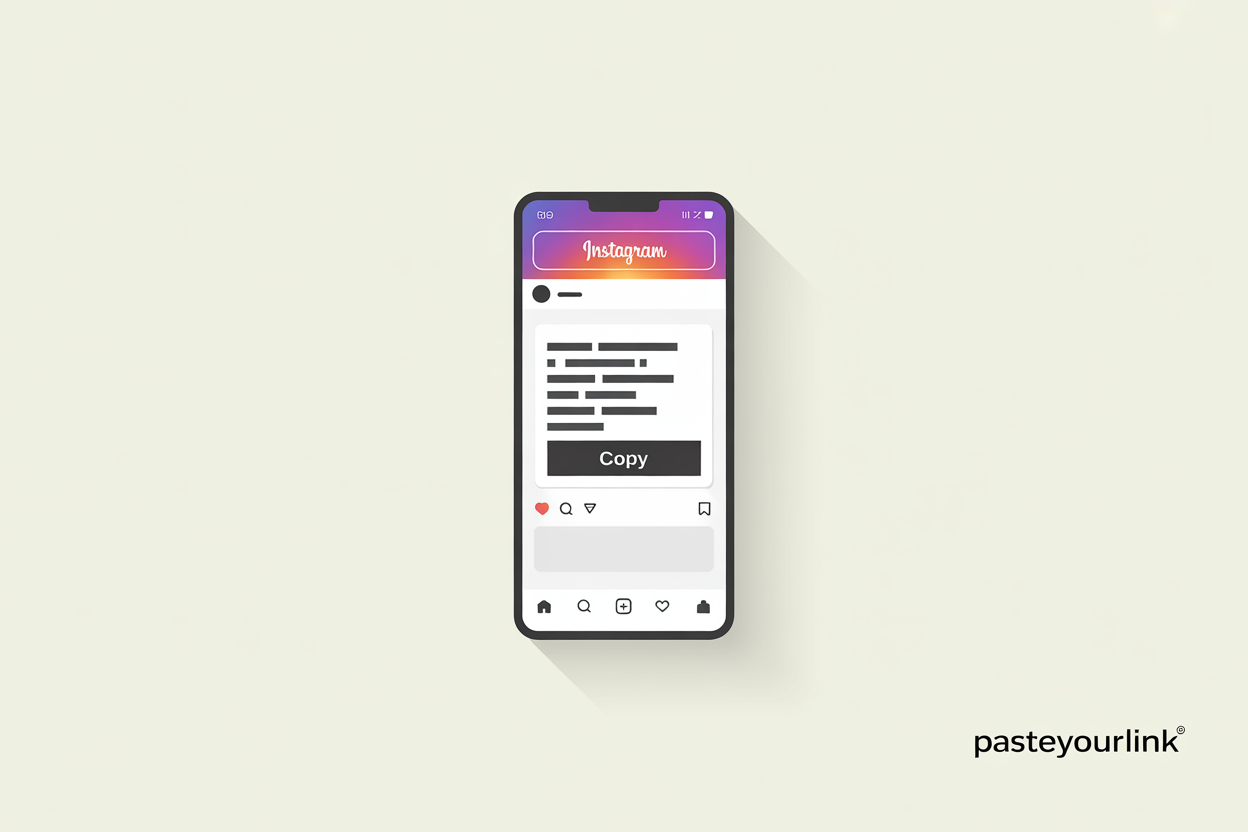
The fastest way to save an Instagram caption, especially on mobile, is to paste the post link into a dedicated caption tool and copy the extracted text in a single tap. Our own PasteYourLink copy caption tool does exactly that for free, with no desktop-site fiddling, no fragile text selection, and no screenshot cropping, just the clean caption with every hashtag and emoji intact.
- In Instagram, tap the share icon or the three-dot menu on the post or reel and choose Copy link.
- Open the copy caption tool and paste the link into the input box.
- Hit the fetch or download button, and the full caption appears as plain, selectable text.
- Tap Copy to send it to your clipboard, then paste it into Notes, a spreadsheet, or your content planner.
Because these tools read the post from its public link, the same workflow also lets you grab the rest of the post in one go. If you came for the caption but also want the photo, reel, or audio, you can use the PasteYourLink Instagram downloader to save the media from the very same link, which keeps your whole repurposing process in one place. It is the same paste-a-link idea we cover for downloading Instagram Stories and saving Instagram music as an MP3.
One sensible caveat: these tools only work with public accounts, since Instagram restricts captions and media on private profiles to approved followers, which is the same honest limit we explain in our guide on whether you can download private Instagram content.
How to save and organise captions as text
Copying a caption is only half the job, the other half is saving it somewhere you will actually find it again. The simplest system is to keep a single running note or document as a swipe file, where you paste captions you admire alongside a quick line on why each one works, so your inspiration is searchable rather than scattered.
- Notes or a doc: paste captions into your phone’s Notes app or a Google Doc for quick, no-fuss saving you can sync across devices.
- A content spreadsheet: keep columns for the caption, the source account, hashtags, and your own notes, which is ideal if you plan posts in batches.
- A swipe file: build a folder of high-performing captions to study structure, hooks, and calls to action over time.
- Your planning tool: drop saved captions straight into a scheduler or planner so they are ready when you draft your own posts.
If you are saving captions to plan a whole feed, it pairs neatly with a way to archive the visuals too, so consider how you might bulk download an entire Instagram profile when you want the captions and the media side by side.
Copying captions the right way: credit and copyright
Copying a caption for your own reference, study, or translation is completely fine, but reposting someone else’s words as if they were your own is not. Captions are creative work, so if you want to share another person’s caption publicly, credit the original author and, where it matters, ask permission first. Using captions as inspiration to write your own is the healthier habit anyway, since it builds your voice rather than borrowing someone else’s.
You may also have seen the recurring claim that Instagram’s algorithm punishes captions pasted in from outside the app, such as from your Notes. There is no credible evidence for that, and Instagram has not confirmed any such penalty, so writing and saving captions as text and pasting them in when you post is perfectly safe. Worry about the quality of the caption, not where you typed it.
Key Takeaways
- Instagram has no in-app copy button for captions, so every method works around the app’s interface.
- On a computer, open Instagram in a browser and simply drag-select the caption, then copy and paste it.
- On a phone, open the post link in a mobile browser, request the desktop site, then select and copy.
- Built-in text recognition (Apple Live Text or Google Lens) lifts captions straight out of a screenshot.
- An online caption tool is the quickest route, paste the post link and copy the full text in one tap.
- Save captions in Notes, a spreadsheet, or a swipe file, and always credit the author if you repost.
Frequently Asked Questions
Yes, but not directly inside the Instagram app, which has no copy button for captions. Open the post in a web browser and drag-select the text, use your phone’s text recognition on a screenshot, or paste the post link into an online caption tool to copy the full caption in seconds.
Tap the share or three-dot menu on the post and choose Copy link, then paste it into a mobile browser and request the desktop site. Press and drag over the caption, then tap Copy. Alternatively, paste the link into an online caption tool and copy the extracted text with one tap.
Yes. A reel’s caption is the description below the video, and you copy it the same way as a post caption. Open the reel in a browser and select the text, or copy the reel link and paste it into a caption tool to fetch the full description, hashtags and all.
No. Instagram does not notify anyone when you copy a caption, view a public post, or take a screenshot of a feed post. The only screenshot notifications Instagram sends are for disappearing photos and videos sent in a private direct message.
Copying a caption for personal reference, study, or translation is fine. Reposting someone’s caption publicly as your own can breach copyright, since captions are creative work. If you share another person’s words, credit the author and ask permission where appropriate, or use the caption purely as inspiration for your own.
Yes. Whichever method you use, the copied text keeps the hashtags, mentions, emojis, and line breaks exactly as the creator wrote them. Online caption tools are the most reliable for preserving formatting, since they extract the complete caption rather than relying on manual selection.
Conclusion
Instagram may not hand you a copy button, but saving a caption as text is genuinely a seconds-long job once you know the routes: drag-select in a browser on a computer, request the desktop site on your phone, lift the words from a screenshot, or paste the post link into the copy caption tool for the cleanest result. Pick whichever fits the moment, keep a tidy swipe file of the captions you love, and always credit the author if you share their words. When you want the media that goes with those captions, PasteYourLink saves the photos, reels, and audio from the same link, so your whole Instagram repurposing workflow stays in one simple place.