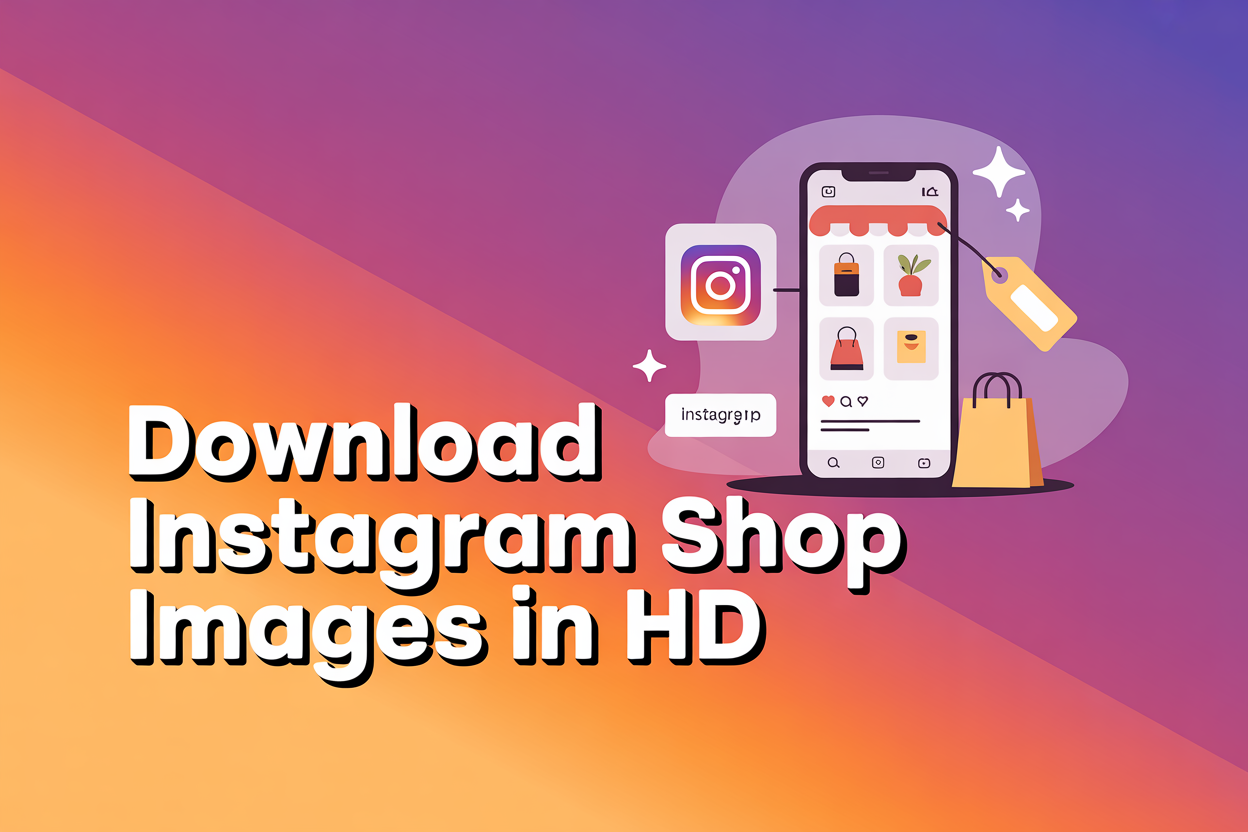
You have spotted the perfect product on an Instagram Shop, the lighting is gorgeous, the styling is spot on, and you want that image saved in proper quality rather than a fuzzy screenshot. The trouble is that Instagram gives you no download button anywhere near a shopping post.
To download Instagram Shop product images in HD, copy the link to the shopping post, paste it into a free Instagram shop image downloader such as PasteYourLink, then save the full-resolution photo to your phone or computer. It works on public shop posts in seconds, with no app to install and no quality loss.
That paste-the-link method is the quickest route, but it is not the only one, and a few small habits make the difference between a crisp catalogue-ready image and a stretched, blurry mess. Below we walk through every reliable way to save Instagram Shop product photos in high definition, on any device, plus the carousel, bulk, and copyright bits that the generic guides tend to skip.
Table Of Contents
- Why download Instagram Shop product images in HD
- How to download Instagram Shop product images in HD (the quick method)
- Save Instagram Shop images in full resolution using your browser
- How to download a whole carousel of product photos at once
- Downloading Instagram Shop images on iPhone, Android, and desktop
- Bulk downloading product images from a whole shop
- Is it legal to download Instagram Shop product images?
- Key Takeaways
- Frequently Asked Questions
- Conclusion
Why download Instagram Shop product images in HD
People save Instagram Shop product images in HD because a high-resolution copy is genuinely useful, whereas a compressed screenshot falls apart the moment you zoom in or reprint it. Whether you are a shopper, a reseller, or a marketer studying the competition, the original quality is the whole point.
- Product research and comparison. Saving clean shots of competitor products lets you study angles, styling, and presentation side by side without flicking back and forth through the app.
- Reselling and dropshipping mood boards. A folder of sharp product photos helps you plan your own listings, though you should always source your own rights-cleared images before publishing anything for sale.
- Wishlists and gift ideas. Keeping the actual product image, rather than a cropped screenshot, makes it far easier to find the item again later or send it to a friend.
- Inspiration and styling references. Brands and creators collect strong product photography to inform their own shoots, lighting, and flat-lay layouts.
The key word throughout is HD. Instagram stores a reasonably high-resolution version of every uploaded photo, so the goal is always to pull that stored original rather than settle for the downscaled preview your screen happens to show.
How to download Instagram Shop product images in HD (the quick method)
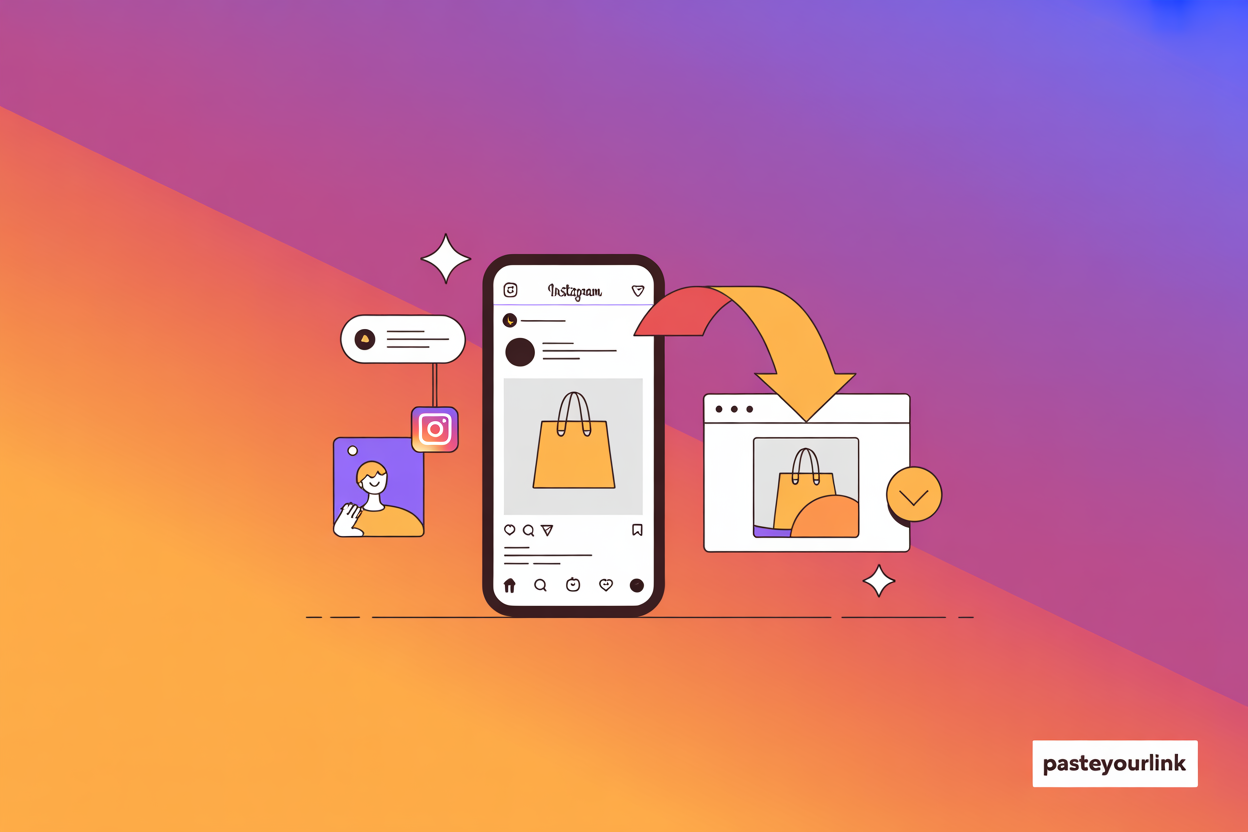
The fastest way to download an Instagram Shop product image in HD is to copy the post link and run it through a free online downloader, which fetches the full-resolution file for you. This is the approach we would recommend to almost everyone, because it needs no software, works on every device, and keeps the quality intact.
- Open the shopping post. In the Instagram app or on the web, tap the product post whose image you want. Shopping posts usually carry a small shopping-bag tag in the corner.
- Copy the link. Tap the three dots (…) above the post and choose Copy link. On desktop, copy the URL straight from your browser’s address bar.
- Paste it into the downloader. Open the PasteYourLink Instagram downloader in any browser and paste the link into the box.
- Download in HD. Press download, then save the full-resolution image. For a carousel of several product shots, every image appears so you can grab them one by one or all at once.
The whole thing takes a few seconds, and because the tool pulls the file Instagram already stores, you get the same quality the brand uploaded rather than a re-compressed copy. There is no watermark, no sign-up, and nothing to install, which is exactly what you want when you are saving more than the odd image.
Save Instagram Shop images in full resolution using your browser
If you would rather not use any third-party tool, you can pull the full-resolution image straight from your desktop browser, which keeps everything between you and Instagram. It is a little more fiddly, but it reliably grabs the highest-quality version Instagram has stored for that product photo.
- Open the Instagram Shop post in a desktop browser such as Chrome, Firefox, or Safari.
- Right-click directly on the product image and choose Inspect or Inspect Element.
- In the panel that opens, look for the highlighted image link that starts with
https://scontentand ends in.jpgor.webp. - Double-click that URL to select it, copy it, then paste it into a new browser tab.
- The full-size image loads on its own, so you can right-click and choose Save Image As to download it.
One word of caution that the quick guides rarely mention: be wary of any app or site promising to “enhance” an Instagram image beyond what was uploaded. Those tools simply stretch the existing pixels, which adds no real detail and usually leaves the product looking soft and distorted, the opposite of the crisp HD copy you were after.
How to download a whole carousel of product photos at once
To download every image in an Instagram Shop carousel, paste the single post link into an online downloader and it will return all the photos from that post together. Shopping posts often show the same product from several angles, or a small range of items, so grabbing the lot in one go saves a lot of repetitive tapping.
The browser inspect method works here too, but it is far slower, because you have to click through to each slide and repeat the whole process per image. For anything beyond a single photo, the paste-the-link downloader is the sensible choice, and it keeps every shot at full resolution rather than the lower quality you would get from screenshots.
Downloading Instagram Shop images on iPhone, Android, and desktop
You can download Instagram Shop product images in HD on any device, and the copy-link-then-paste method works identically across iPhone, Android, and desktop. The only differences are where the saved file lands and how you reach the copy-link option.
- iPhone. Copy the post link in the app, paste it into the downloader in Safari, then press and hold the image (or use the download button) to save it to your Photos app or Files.
- Android. Copy the link, paste it into the downloader in Chrome, tap download, and the image drops into your Gallery or Downloads folder.
- Desktop. Copy the URL from the address bar, paste it into the downloader, and the HD file saves straight to your computer, which is ideal when you are building a proper product folder.
Because everything runs in the browser, there is no separate iOS or Android app to download, and the result is the same full-quality image whichever device you happen to be holding.
Bulk downloading product images from a whole shop
If you need more than a handful of product photos, for example to archive a whole shop’s catalogue for research, bulk downloading saves you doing the same job dozens of times over. Instead of working post by post, you collect the images from an entire public profile in one batch.
We cover the full workflow in our guide on how to bulk download an entire Instagram profile, which walks through saving posts, Reels, and Stories together. For product-only shops it is a tidy way to pull every catalogue image at once, although it is worth being realistic: bulk saving someone else’s product photography is fine for private research, but republishing it as your own crosses a line we cover next.
Is it legal to download Instagram Shop product images?
Downloading an Instagram Shop product image for personal use, such as research, a wishlist, or a private mood board, is generally fine, but the photo still belongs to whoever created it. The act of saving a copy never transfers any rights, so the real question is always what you do with the image afterwards.
Reposting a brand’s product photo on your own shop, advert, or listing without permission is copyright infringement, plain and simple. If you are selling, you should licence the image or, far better, shoot your own product photography. For a fuller breakdown of where the line sits, our honest look at what you can and cannot download from Instagram is worth a read, and the same principle applies whether the content is public or behind a private account. As a rule of thumb from the wider creator community, Instagram’s own guidance on intellectual property makes clear that posting content does not waive the owner’s rights.
Ready to grab those product shots properly? Skip the blurry screenshots and use the free PasteYourLink Instagram downloader to save any public shop image in full HD, then keep your catalogue research tidy. If you also collect profile shots, our Instagram profile picture downloader guide covers saving those in full size too.
Key Takeaways
- The quickest way to download Instagram Shop product images in HD is to copy the post link and paste it into a free downloader like PasteYourLink.
- For a tool-free option, the desktop browser Inspect method pulls the same full-resolution file Instagram has stored.
- Carousels and whole shops download in batches, so you never have to save product photos one screenshot at a time.
- Avoid “enhancer” apps, which stretch pixels rather than add real detail and leave product images looking soft.
- Saving for personal research is fine, but reusing someone’s product photo commercially needs permission or your own shoot.
Frequently Asked Questions
Open the shopping post, tap the three dots and choose Copy link, then paste that link into a free Instagram shop image downloader such as PasteYourLink and press download. The full-resolution product photo saves to your phone or computer in seconds, with no app required.
Yes. Instagram stores a high-resolution version of every uploaded photo, and a link-based downloader or the desktop Inspect method both pull that stored original. You are limited to the quality the brand uploaded, so no tool can add detail that was never there in the first place.
Paste the single carousel post link into an online downloader and it returns every image from that post together, so you can save them individually or all at once. This is far quicker than the browser method, which makes you click through and save each slide one at a time.
No. Instagram does not notify users when you save a photo using a downloader, the browser Inspect tool, or a screenshot of a normal post. The only download that triggers an alert is a disappearing photo or video sent in a direct message, which is a separate feature.
Not without permission. The product photo belongs to whoever created it, and downloading a copy does not transfer any rights. Using it on your own listings or adverts is copyright infringement, so you should licence the image or, far better, shoot your own product photography before selling.
The method is the same on iPhone and Android: copy the post link in the Instagram app, paste it into a downloader in your browser, then save the image. On iPhone it lands in Photos or Files, and on Android it drops into your Gallery or Downloads folder, with no separate app needed.
Conclusion
Saving Instagram Shop product images in HD comes down to one simple habit: stop screenshotting and start pulling the file Instagram already stores. Copy the post link, paste it into a downloader, and you get the crisp, full-resolution photo every time, whether you are researching products, building a mood board, or keeping a wishlist tidy. When you are ready to grab your next product shot, paste your link into PasteYourLink and save it in proper quality, no app, no watermark, no fuss.