A friend tags you in a gorgeous holiday photo, or you stumble across a brilliant shot a customer posted of your product, and you want to keep it. Then you tap around the app looking for a save button and realise Instagram has quietly hidden every obvious way to do it.
To download tagged photos from Instagram, open the post you have been tagged in, copy its link from the three-dot or share menu, and paste that link into a free downloader to save the image in full quality. Instagram has no built-in download button, so this link method is the reliable way to keep tagged photos, whether they are yours or someone else’s.
That single trick covers most situations, but there is a bit more to it once you want every photo you have ever been tagged in, or you are trying to save tagged shots from another person’s profile. Below we walk through finding your tagged posts, saving one photo or all of them, doing it on a phone or a computer, and the honest limits around private accounts and anonymity.
Where to find the photos you’re tagged in
The photos you are tagged in live in the Tagged tab on your own Instagram profile, marked by a small person-shaped icon that sits to the right of your grid and reels tabs. Tapping it shows every public post in which another account has tagged your username, which is the gallery most people mean when they talk about their tagged photos.
It is worth knowing that you control what appears there. In your settings under Tags and mentions you can switch tagged posts to manual approval, and you can remove yourself from any tag you would rather not display. None of that deletes the original post, though, so even after you untag yourself the photo still exists on the other person’s profile, which matters when you want to download a copy for yourself. For a closer look at how Instagram’s official tagging controls work, Instagram’s own Photos and videos of you help page is the canonical reference.
How to download a single tagged photo (the link method)
The quickest way to save one tagged photo is to copy the post’s link and paste it into an online Instagram downloader, which works the same whether the photo is on your profile or somebody else’s. Because the tool reads the post from its public link, you get the original full-resolution file rather than a shrunken, blurry screenshot.
- Open the tagged post, either from your own Tagged tab or on the account that posted it.
- Tap the three-dot menu at the top of the post (or the share paper-plane icon) and choose Copy link.
- Open the PasteYourLink Instagram downloader and paste the link into the input box.
- Press the download button, and the photo is fetched in its original quality.
- Save the image to your camera roll, gallery, or computer, and you are done.
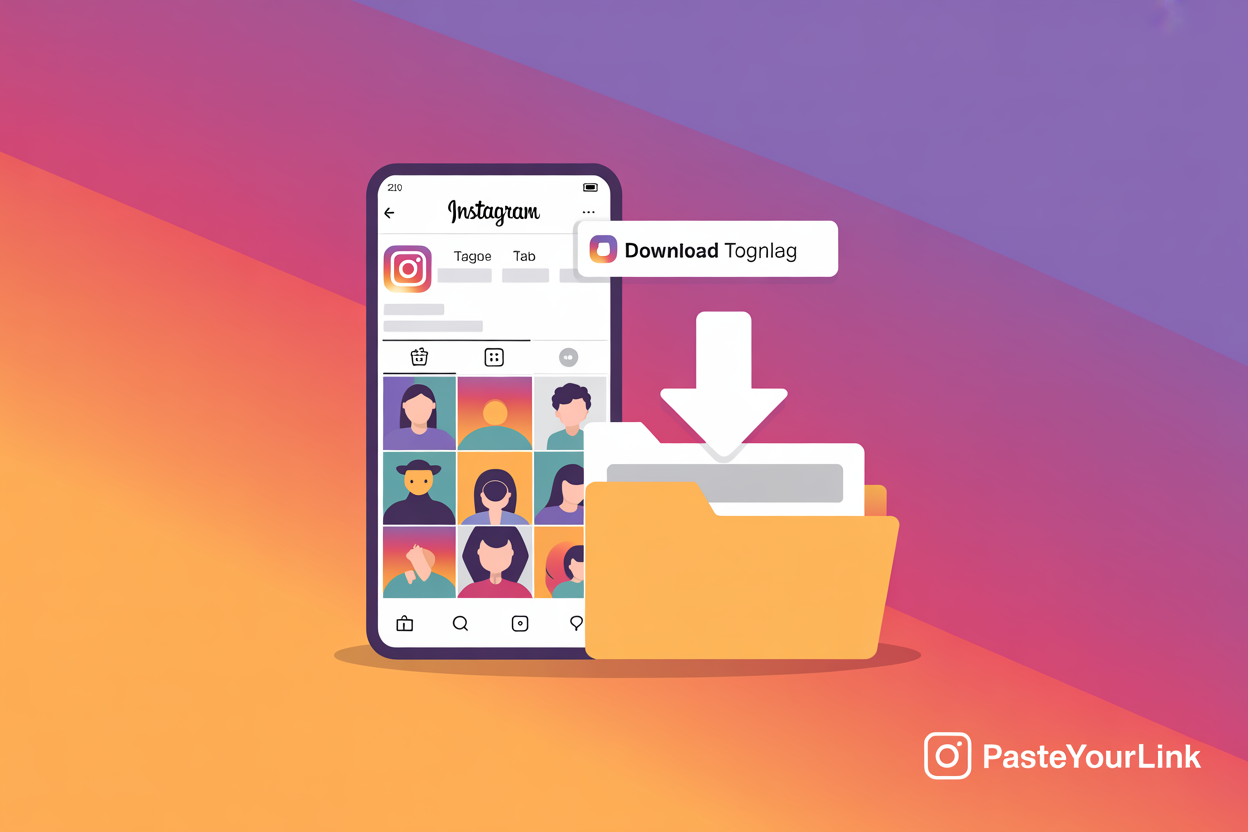
If the tagged post is a carousel with several images, a good downloader will let you pick individual photos or grab the whole gallery at once, so you are not stuck saving them one painful tap at a time. This is the same paste-a-link approach we use across the blog, from downloading Instagram Stories to saving an Instagram profile picture in full size, and it keeps your whole saving routine in one familiar place.
How to download tagged photos on your phone (iPhone and Android)
On a phone you download a tagged photo by copying the post link in the Instagram app and pasting it into a browser-based downloader, since the process is identical on iPhone and Android. The app itself gives you no save option for other people’s posts, so the link route is what makes it work on mobile without installing anything.
- In the Instagram app, find the tagged post and tap its three-dot menu, then choose Copy link.
- Open Safari on iPhone or Chrome on Android and go to the downloader site.
- Paste the link, tap download, and press and hold the resulting image (or use the download arrow) to save it to your Photos or Gallery.
The one native exception is a tagged photo you posted yourself, because Instagram does let you save your own posts. If the tagged photo is on your account, open it, tap the three-dot menu, and choose Save, which tucks a copy into a private collection inside the app. That is handy for bookmarking, but it does not export a file to your camera roll, so for an actual downloaded image the link method above is still the one to use.
How to download all the photos you’re tagged in at once
To download every photo you are tagged in, you need a bulk tool rather than saving posts one by one, because Instagram offers no native export of your tagged gallery. A desktop application such as 4K Stogram can point at any public account’s Tagged tab and pull the entire collection in one go, which is the route the existing how-to guides on this keyword all recommend.
- Install a desktop downloader that supports tagged posts, then log in with your Instagram account inside the app.
- Enter the username whose tagged photos you want, which can be your own profile or any public account.
- In the download options, switch off every content type except Tagged so you only grab tagged posts.
- Start the download and let it work through the gallery, saving each photo at full resolution to a folder on your computer.
If your real goal is to archive a whole account rather than just its tagged shots, our guide on how to bulk download an entire Instagram profile walks through saving posts, stories, and reels together, and the same desktop tools usually handle Instagram highlights in the same pass.
Does Instagram’s “Download Your Information” include tagged photos?
No, Instagram’s official Download Your Information tool does not include the photos you have only been tagged in, which is the single biggest misunderstanding around this topic. The data export gives you content you posted, your messages, your profile information, and similar account data, but a photo that lives on someone else’s profile is their content, not yours, so it is left out of your download.
You can still request that export from your account settings, and it is well worth doing as a backup of everything you have actually posted yourself. To grab the tagged photos that other people uploaded, though, you are back to the link method for single posts or a bulk downloader for the whole gallery, since those read the public post directly rather than relying on your personal data file. Meta explains the scope of the export on its Download Your Information help page.
Downloading tagged photos from someone else’s account
You can download tagged photos from another person’s public profile using exactly the same link method, because a public post is accessible whether or not it is your own. Open their Tagged tab, choose the post you want, copy its link, and paste it into the downloader to save the image, with no follow request or login required for public accounts.
This is genuinely useful for brands and creators who get tagged in customer photos and want to repost that user-generated content, and for anyone keeping a copy of pictures friends and family have tagged them in. The golden rule is courtesy: saving a public photo for your own use is fine, but if you plan to repost someone else’s image you should credit the original creator and, where it matters, ask first.
Can you download tagged photos without the person knowing?
Yes, you can download tagged photos without anyone being notified, because Instagram does not alert users when their public photos are viewed, screenshotted, or saved through a downloader. The only screenshot alerts Instagram sends are for disappearing photos and videos shared inside a private direct message, which has nothing to do with ordinary feed or tagged posts.
So whether you save a tagged photo from your own profile or from a public account you do not follow, the person on the other end sees nothing. That said, anonymity is about the mechanics, not a free pass on etiquette, so the credit-and-ask habit still applies the moment you move from keeping a private copy to publishing it.
Can you download tagged photos from a private account?
No, you cannot download tagged photos from a private Instagram account unless you are an approved follower, and no honest online tool can get around that. Instagram deliberately limits private profiles to people the owner has accepted, so a downloader that only reads public links simply has nothing to fetch when the account is locked.
If you already follow the private account, you can still save individual tagged posts using your phone’s tools or by viewing the post in a browser, but a bulk grab of a private gallery is off the table. Any service promising to unlock a private profile is best avoided, and we explain why in our honest look at whether you can download private Instagram content.
Keeping full quality and staying on the right side of the rules
To keep tagged photos at full quality, always download the original file through a link-based tool rather than screenshotting, since a screenshot caps the image at your screen resolution and adds compression. A proper downloader hands you the same resolution the photographer uploaded, which matters if you ever want to print the shot, reuse it in a design, or simply keep a crisp memory.
On the rules, downloading tagged photos for personal use, such as keeping pictures of yourself or backing up your own content, is widely accepted. Republishing someone else’s photo is a different matter, because the image is the creator’s intellectual property, so credit them, ask permission for commercial reuse, and never pass another person’s work off as your own. Treat the download as the easy part and the courtesy as the part that protects your reputation.
Key Takeaways
- Instagram has no built-in download button, so the reliable way to save tagged photos is to copy the post link and paste it into a downloader.
- The photos you are tagged in sit in the Tagged tab on your profile, marked by a small person-shaped icon.
- The link method works identically for your own tagged photos and for public posts on other people’s accounts, on iPhone, Android, and desktop.
- For every photo you are tagged in, use a bulk desktop tool, since saving one by one quickly becomes tedious.
- Instagram’s Download Your Information export does not include photos you were only tagged in, because they belong to someone else’s account.
- Private accounts stay private, downloads are not notified to anyone, and a link-based tool keeps the original full resolution.
Whichever tagged photo you are after, the simplest path is to copy its link and let the PasteYourLink downloader pull the full-quality image for you, no app install and no screenshots needed.
Frequently Asked Questions
Yes. Instagram has no built-in download button, but you can copy a tagged post’s link from its three-dot or share menu and paste it into a free online downloader to save the photo in full quality. This works for photos on your own Tagged tab and for public posts on other people’s profiles.
Open the post in your Tagged tab, tap the three-dot menu, and choose Copy link, then paste that link into an Instagram downloader and save the image to your phone or computer. If you posted the photo yourself, you can also tap Save to bookmark it privately inside the app, though that does not export a file.
Yes. Instagram never notifies users when their public photos are viewed, screenshotted, or saved with a downloader, so saving a tagged photo is completely private. The only screenshot alerts Instagram sends are for disappearing photos and videos in a direct message, which do not apply to feed or tagged posts.
No. The Download Your Information export only includes content you posted, your messages, and your account data. Photos you were merely tagged in live on someone else’s profile, so they count as that person’s content and are left out. To save tagged photos, use the link method or a bulk downloader instead.
Yes, but you need a bulk desktop tool such as 4K Stogram rather than Instagram itself, which offers no native export of your tagged gallery. Point the app at your username’s Tagged tab, switch off every content type except Tagged, and download the whole collection at full resolution in one pass.
No, not unless you are an approved follower, and no legitimate tool can bypass that. Instagram restricts private profiles to accepted followers, so a downloader that reads public links has nothing to fetch. If you already follow the account you can save individual posts, but a bulk grab of a private gallery is not possible.
Conclusion
Instagram makes saving tagged photos feel harder than it needs to be, but the answer is refreshingly simple once you know it: find the post in the Tagged tab, copy its link, and paste it into a downloader to keep the full-quality image, whether the photo is yours or a public one from someone else. Reach for a bulk desktop tool when you want the whole gallery, remember that the Download Your Information export leaves tagged photos out, and respect private accounts and creator credit along the way. When you are ready to save one, PasteYourLink turns a copied link into a downloaded photo in seconds, so the tagged shots you care about are yours to keep.